From the previous version: where do I find…
Basket Recorder Pro has been rebuilt from scratch. Your teams, seasons and games are still there, but some things have moved. Below, item by item, how it was before and where it is now.
The app now also runs on iPhone and Android, as well as iPad.
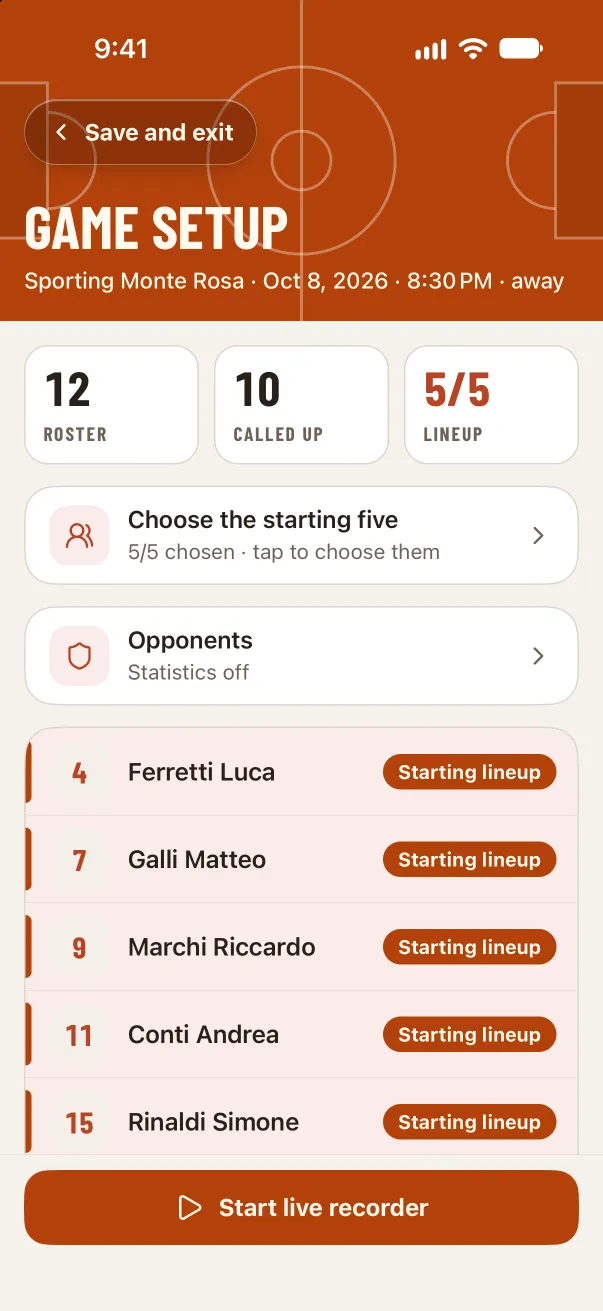
Starting a game: called-up players and starting five
Before: In the game form you called up at least 5 players, tapped “Go to Game!”, spent the credit and chose the starting lineup.
Now:
- In the season calendar tap the game, then “Prepare game”.
- Tap the players to call them up, then “Choose the starting five” and tap the 5 who start the game.
- Then “Start live recorder” and confirm: starting the game uses one club credit.
Roster and jersey numbers
Before: In “My Seasons” you tapped the season’s “i”, then “Roster & Jersey N.”: a blue tick for the players of the season and the first and second jersey numbers.
Now:
- From the season open “Season roster”: under “Available in the club” tap “Add” next to the players of the season; “New” at the top creates a player and puts them on the roster.
- Next to each player enter the 1st and 2nd jersey numbers.
- Only players on the season roster can be called up.
Calling up a player after the start
Since version 3.0.9Now:
- In the recorder open “Substitutions” and tap “+ Add to squad”: the player joins the bench and enters with a substitution.
- If you added them by mistake and they have no actions yet, remove them with “Remove”.
Substitutions and game clock
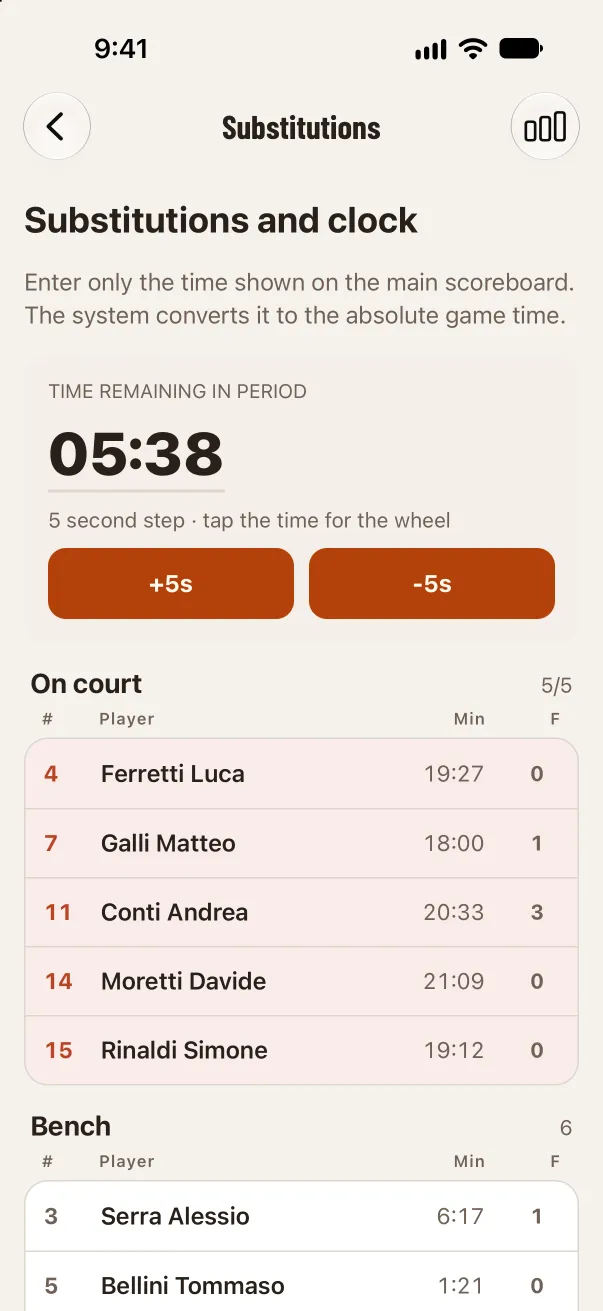
Before: In “Substitutions” you chose the minutes left in the quarter, then tapped the players to swap.
Now:
- In the recorder tap “Substitutions”. At the top is the “Time remaining in period”: enter the time you read on the scoreboard.
- Tap the time for the wheel, or use −5s and +5s.
- Tap the players “On court” and on the “Bench” to swap, then “Save substitution”.
Fouls of the players on the bench
Before: To see the fouls of the players on the bench you opened the substitutions screen.
Now:
- In the recorder tap “Bench”: you see who is on the bench, with points and fouls, without making a substitution.
- When a player on the bench is close to the foul limit, the button shows it.
Ending a period
Before: End of the period and “Complete the…” quarter.
Now:
- In the recorder, at the top, tap “End Q1” (or the current period).
- “End period” opens: make the substitutions of the break, then “End period” and confirm.
- An ended period cannot be reopened: correct it before, or after the game.
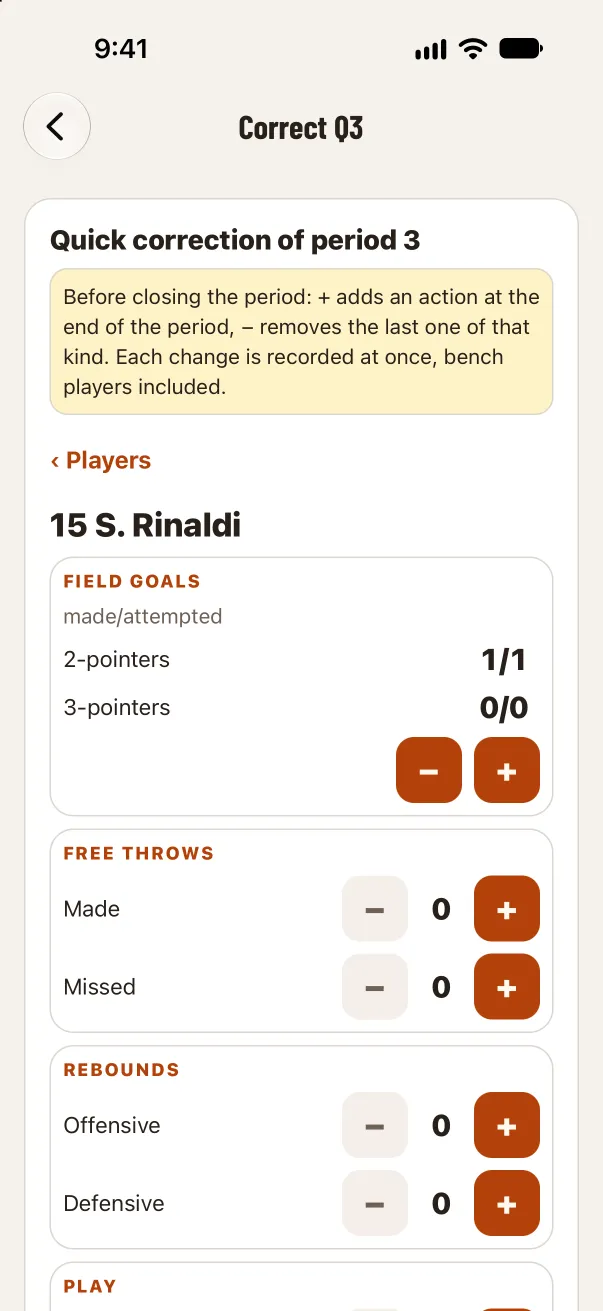
Correcting the period before ending it
NewNow:
- On the end-of-period screen tap “Correct period 1” (or the current period).
- For each player, the team and the opponent: + adds an action at the end of the period, − removes the last one of that kind.
Correcting stats after the game
Before: In “Game Stats” you chose a period, switched from “view” to “edit” and tapped a player.
Now:
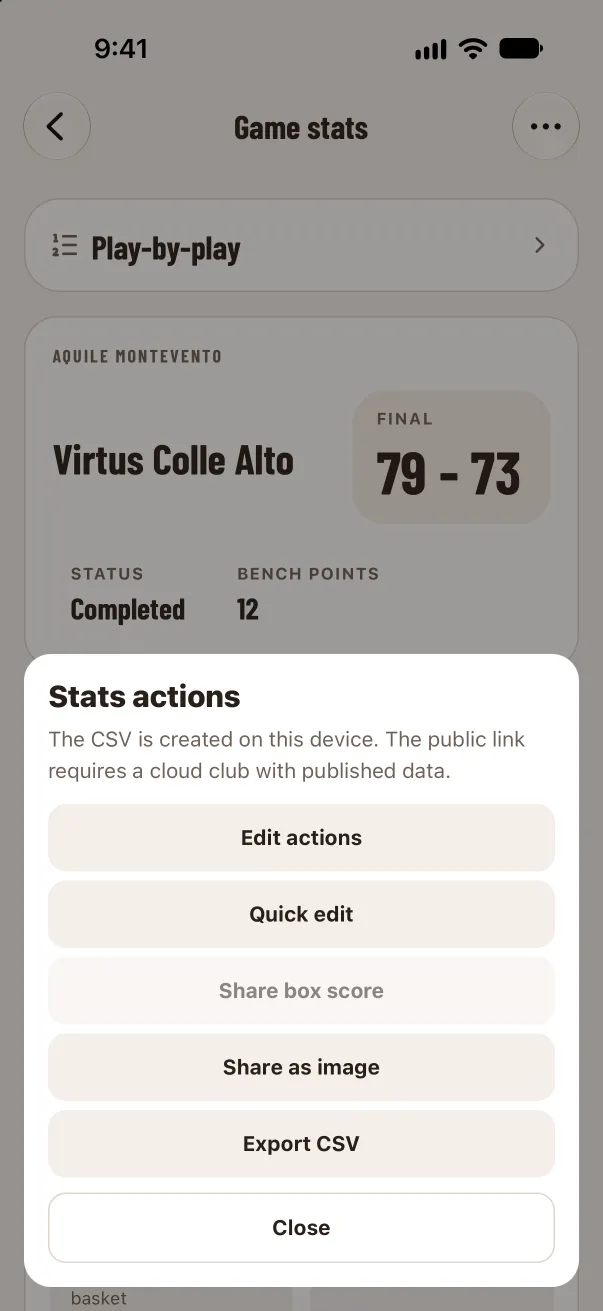
- Open the game, “View statistics”, then the “⋯” button at the top.
- “Quick edit”: choose the period and correct the counters, as before.
- “Edit actions”: the list of actions, period by period, to correct or remove a single action.
Opponent points
Before: “OPPONENT POINTS” with +1, +2, +3 and −1, −2, −3.
Now:
- +1, +2 and +3 remain. To remove a wrong point use Undo, or the quick period correction.
Exporting and sharing stats
Before: In the detailed game stats two icons at the top: the arrow for the image, the pencil for an email with the box score file.
Now:
- In “View statistics”, the “⋯” button:
- “Export CSV”: the same box score as before, with the whole game, one block per period and the opponents apart.
- “Share as image”: vertical for social media or the full box score.
- “Share box score”: a link that opens without the app (cloud clubs only).
- For the season: “Season stats”, same “⋯” button.
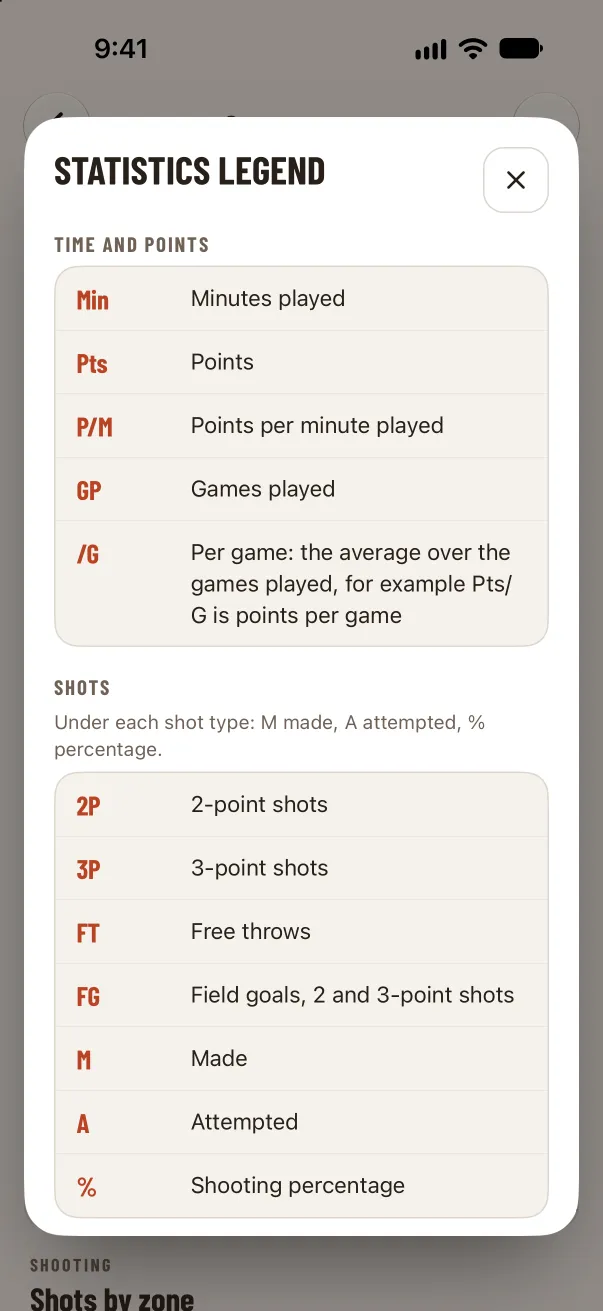
What an abbreviation means
NewNow:
- The “?” button next to the stats opens the legend: in the game, the season, the player page and the recorder.
- The rating is called PIR or EFF: choose it in the club Settings, “Rating formula”.
Options: periods, fouls and opponents
Before: “Options” on the home screen: number and length of periods, foul limit, bonus, opponents.
Now:
- Game rules belong to the season: find them in the season form, “Game rules”. They can change while every game is still to be played.
- Opponent stats are turned on for each game, before it starts: in the game setup tap “Opponents”.
- The values proposed for new seasons are in Account › “Default rules”.
Backup
Before: Backup with Google: 15 credits, at most 2 copies.
Now:
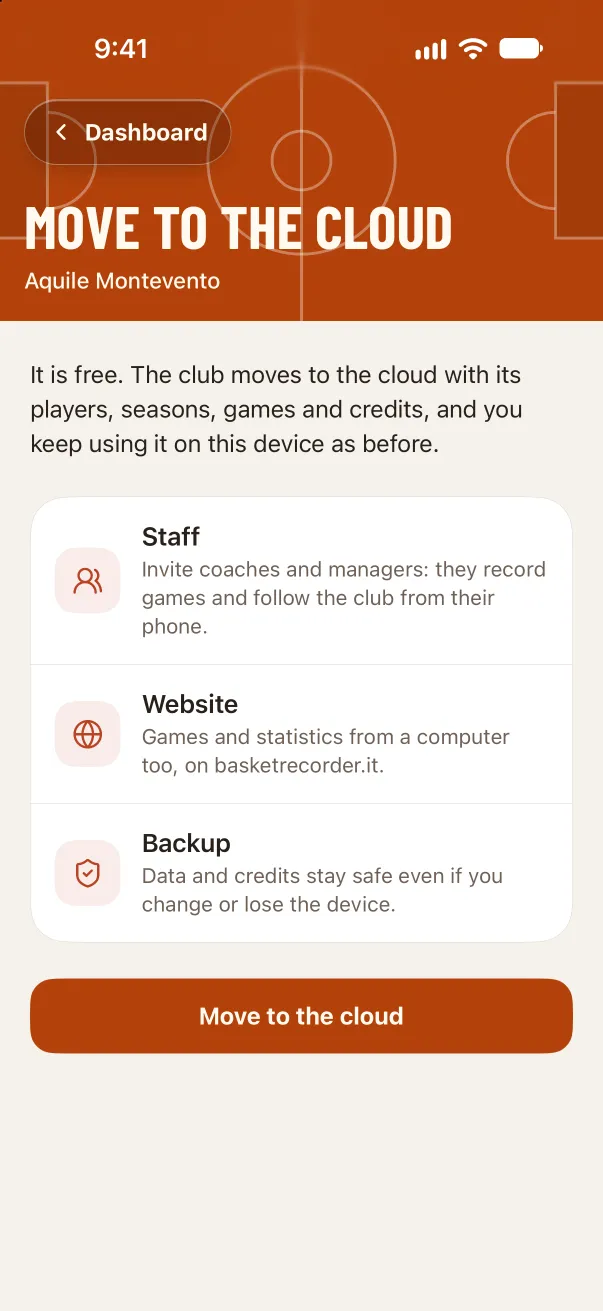
- Backup is free: bring the club to the cloud and the data stays up to date, on another device too.
- On the club screen tap “Staff, web and backup”, then “Move to the cloud”. You need an Apple or Google account.
Staff and invitations
NewNow:
- In a cloud club open “Members & invitations” and under “New invitation” enter the email, choose the role and tap “Create invitation”: Staff for coaches and helpers, Viewer for parents and players.
- The invited person finds it in the email or in the app, under Account › “Invitations”.
Games from the previous version
NewNow:
- They are in a club on this device, with the credits you had.
- You can view and export them like the others, but not correct them.
- A game left open shows “Finish game”.
Feedback and support
Before: “Give Us Advice” in the app info.
Now:
- In Account tap “Contact support”: a ready email opens with the app version.
- “Help & feedback” opens the support page on the website.
Can’t find something?
Write to [email protected], or from the app: Account › “Contact support”.